

Google indexing issues can stop important pages from appearing in search results, even when your content is well-written and technically optimized. If Google cannot discover, crawl, understand, or index a page, that page cannot generate organic traffic.
In this guide, you’ll learn how to diagnose and fix the most common page indexing problems in Google Search Console, including “Discovered – currently not indexed,” “Crawled – currently not indexed,” 404 errors, redirect errors, sitemap problems, canonical issues, and noindex settings.
Quick Answer
To fix Google indexing issues, first identify the exact status in Google Search Console, then check whether the page should be indexed. If yes, review technical blocks, sitemap inclusion, internal links, canonical tags, content quality, redirects, robots.txt, and page availability. After fixing the issue, use URL Inspection to test the page and request indexing for high-priority URLs.
Common Google Indexing Issues and How to Fix Them
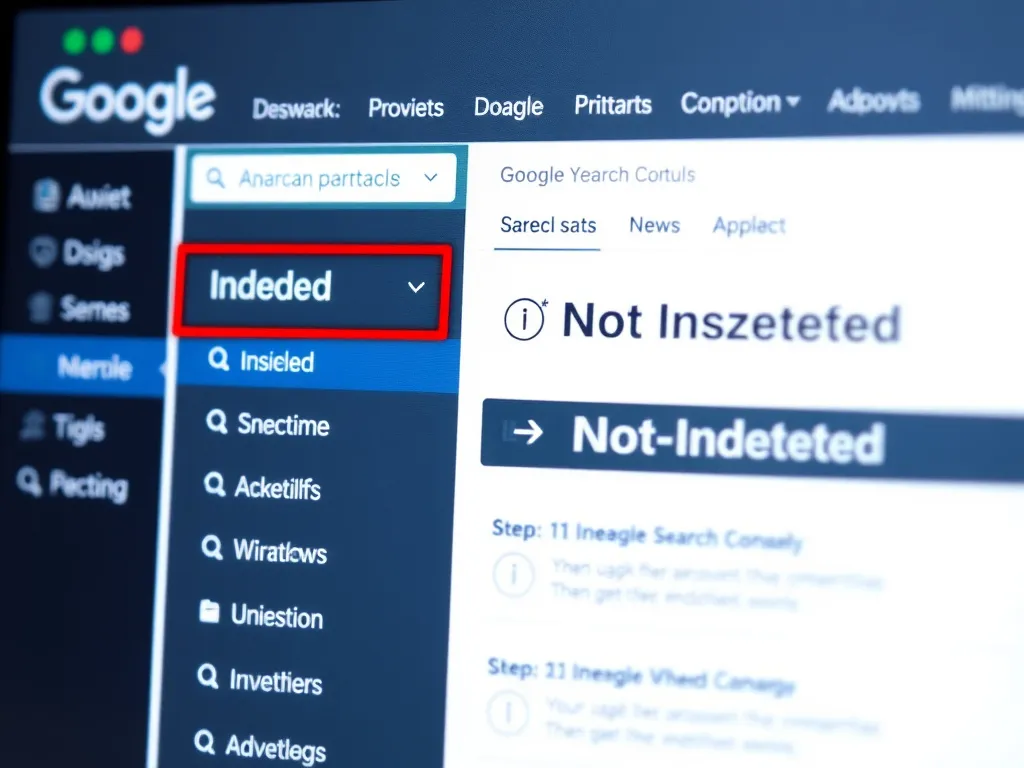
Google Search Console groups indexing problems into different status types. Each status needs a different fix, so it is important to understand what the issue actually means before making changes.
| Indexing Status | What It Means | Recommended Fix |
|---|---|---|
| Discovered – currently not indexed | Google knows the URL but has not crawled it yet. | Improve internal links, update the sitemap, link from important pages, and request indexing for high-priority URLs. |
| Crawled – currently not indexed | Google crawled the page but decided not to index it yet. | Improve content quality, add original value, strengthen internal links, and check canonical tags. |
| Not found 404 | The URL returns a missing page response. | Restore the page, redirect it to a relevant alternative, or leave it as 404/410 if it should not exist. |
| Redirect error | Google found a redirect problem, loop, broken target, or invalid redirect chain. | Fix the redirect path and make sure the final URL returns a valid 200 response. |
| Excluded by noindex | The page tells Google not to index it. | Remove the noindex tag if the page should appear in search results. |
| Duplicate without user-selected canonical | Google sees duplicate or near-duplicate content and chose its own canonical. | Add a clear canonical URL and reduce duplicate content signals. |
Why Indexing Issues Matter
If Google does not index a page, it cannot appear in search results. That means the page cannot bring organic traffic, leads, or conversions from Google, even if the content itself is valuable.
Indexing problems are usually part of a broader technical SEO system that includes crawlability, sitemap health, internal links, structured data, page speed, and content quality.
Not every “Not indexed” URL is a problem. Some URLs should stay out of Google, such as admin pages, thank-you pages, duplicate pages, internal search pages, filtered URLs, and low-value archives. The real goal is not to index everything. The goal is to make sure your important pages are discoverable, crawlable, indexable, and valuable enough to appear in search.
1. Understand What “Indexing Issues” Really Mean
Before making changes, remember one key point: Google is not obligated to index every URL on your site. Indexing depends on quality, relevance, accessibility, internal signals, and technical clarity.
Think of Googlebot as a librarian. If your page is hard to find, blocked by technical rules, duplicated elsewhere, or not useful enough, Google may choose not to add it to the index.

Your important pages should be:
- Easy to find: Linked internally and included in your XML sitemap.
- Technically accessible: Not blocked by robots.txt, noindex, broken redirects, or server errors.
- High-quality: Unique, useful, well-structured, and aligned with search intent.
- Clearly connected: Supported by internal links from related pages and topic hubs.
- Easy to understand: Supported by headings, schema markup, clean HTML, and clear page structure.
Indexing issues can come from:
- Technical blocks such as robots.txt, noindex tags, or incorrect canonical tags.
- Low-quality, thin, duplicate, or auto-generated content.
- Weak internal linking and orphan pages.
- Slow server response times or crawl budget limitations.
- Redirect chains, broken URLs, or inconsistent sitemap signals.
2. Start in the Pages Report in Google Search Console
In Google Search Console, go to Indexing > Pages. This report shows which URLs are indexed and which URLs are not indexed, along with the reason Google provides.
You will usually see two main sections:
- Indexed: URLs currently available in Google’s index.
- Not indexed: URLs Google knows about but has not indexed.
Click each issue category and review the affected URLs. Your first question should always be:
Important Question
Should this URL actually be indexed?
If the answer is no, you may not need to fix anything. If the answer is yes, then you need to identify whether the issue is caused by discovery, crawling, technical rules, content quality, or duplication.
3. Crawled – Currently Not Indexed
“Crawled – currently not indexed” means Google visited the page but decided not to include it in the index yet. This usually means there is no obvious crawling block, but Google does not see enough value, uniqueness, or priority to index the URL.
Common causes include:
- Thin content with limited original value.
- Duplicate or near-duplicate content.
- Weak internal links pointing to the page.
- Low page importance compared with other pages on the site.
- Auto-generated content that does not add enough useful information.
- Confusing canonical signals.
To fix this issue, ask yourself:
- Is this page genuinely useful for the user?
- Does it answer the search intent better than competing pages?
- Does it include original examples, data, screenshots, insights, or practical steps?
- Is it linked from important pages on the site?
- Does it overlap too much with another page?
If Google crawls your page but does not index it, improve the page with original examples, stronger formatting, better internal links, and clearer structured data. Improving schema markup can also help search engines understand the page context more clearly.
<!-- Example: contextual internal link -->
<p>Learn how technical SEO issues affect indexing and organic visibility.</p>
<a href="/10-technical-seo-issues-that-can-kill-your-organic-traffic/">technical SEO issues</a>
4. Discovered – Currently Not Indexed
“Discovered – currently not indexed” means Google knows the URL exists but has not crawled it yet. This often happens when Google finds the URL in a sitemap, from a link, or from another discovery source, but does not crawl it immediately.
This can happen on:
- New websites with limited authority.
- Large websites with many URLs.
- Pages buried deep in the site structure.
- Pages with weak internal links.
- Sites with slow server response times.
- Pages that appear low priority to Google.

To improve crawling priority:
- Add contextual internal links: Link to the page from related, already-indexed pages.
- Link from hub pages: Include important pages inside topic hubs and category structures.
- Update your XML sitemap: Make sure the URL is included in your sitemap if it should be indexed.
- Improve server performance: Slow response times can reduce crawl efficiency.
- Reduce duplicate URLs: Avoid wasting crawl attention on low-value duplicates.
- Request indexing: Use URL Inspection for high-priority pages after meaningful updates.
5. Check Whether the Page Is Included in Your Sitemap
If a page is not included in your XML sitemap, Google may still discover it through internal links, but discovery can be slower. A clean sitemap helps Google find your important URLs faster and understand which pages matter most.
To check this, open your sitemap and search for the exact URL. If the URL is missing, review your SEO plugin settings and make sure posts, pages, and important content types are included in the sitemap.
A sitemap alone is not enough. Important pages should also be linked from relevant internal pages, hub pages, navigation, categories, or the homepage.
<urlset xmlns="http://www.sitemaps.org/schemas/sitemap/0.9">
  <url>
    <loc>https://example.com/important-page/</loc>
    <lastmod>2026-06-24</lastmod>
  </url>
</urlset>
A clean sitemap works best when your articles are connected through internal links and organized into a clear topical structure.
6. Use Internal Links to Help Google Prioritize Important Pages
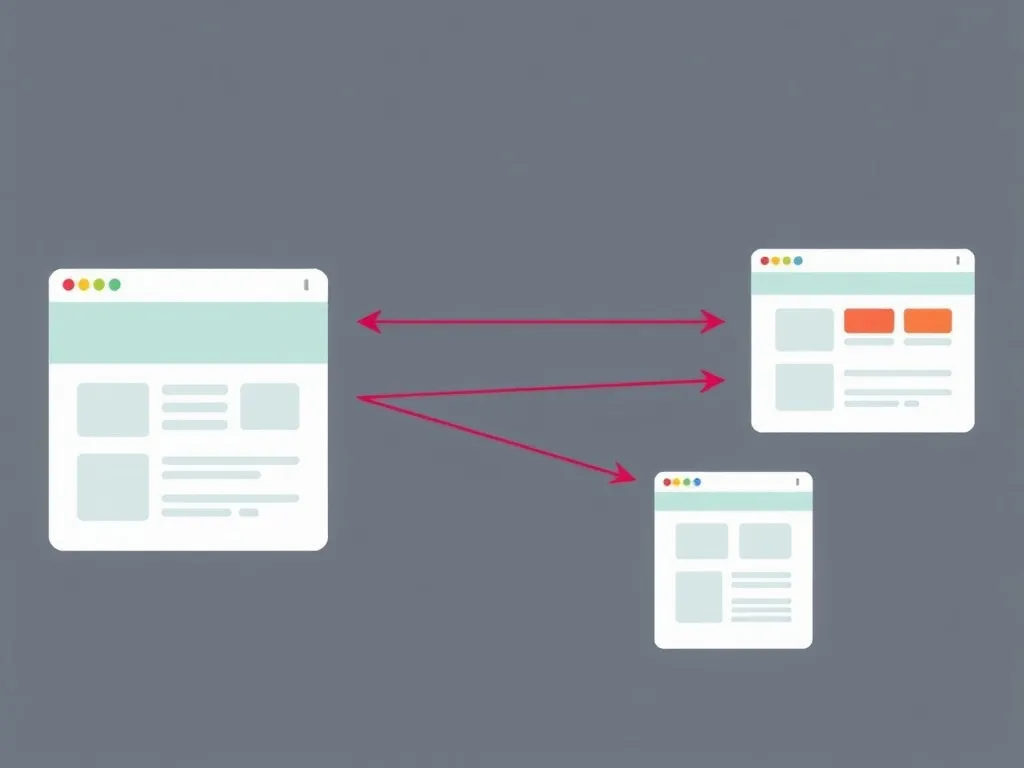
Internal links help Google discover pages, understand relationships between topics, and evaluate which pages are important inside your website.
When a page appears as “Discovered – currently not indexed,” Google knows the URL but may not consider it important enough to crawl immediately. One of the best ways to improve discovery priority is to add contextual internal links from relevant, already-indexed pages.
For example, a page about structured data should link to related guides about technical SEO, indexing issues, schema markup, crawl errors, Core Web Vitals, and AI search visibility. This helps Google understand the relationship between your pages and the topic cluster they belong to.
Internal linking best practices:
- Link from relevant articles, not random pages.
- Use descriptive anchor text instead of “click here.”
- Link from hub pages to supporting articles.
- Link from supporting articles back to the hub page.
- Make sure every important page has at least one internal link.
- Avoid orphan pages with no internal links pointing to them.
7. Alternate Page with Proper Canonical Tag
This status means Google considers the URL an alternate version of another page and has chosen to index the canonical version instead.
Canonical tags help Google understand which URL is the main version when similar or duplicate pages exist. This is common with product variations, tracking URLs, category filters, or duplicated content across multiple paths.
Check the following:
- Does the canonical tag point to the correct main URL?
- Is the canonical URL indexable?
- Does the page have enough unique value to deserve its own index entry?
- Are there conflicting canonical signals in the HTML, HTTP headers, sitemap, or internal links?
If you want the page indexed, set the canonical tag to itself and make sure the content is sufficiently unique.
<link rel="canonical" href="https://example.com/main-page/" />
8. Excluded by Noindex Tag
“Excluded by noindex tag” means the page contains a robots directive telling Google not to index it. This can appear in the HTML or in HTTP headers.
A noindex tag is useful for pages such as:
- Login pages.
- Admin pages.
- Thank-you pages.
- Internal search result pages.
- Duplicate or low-value archive pages.
If the page should be indexed, remove the noindex directive and make sure your SEO plugin, theme, or server headers are not adding it automatically.
<meta name="robots" content="index, follow" />
After removing the noindex directive, use URL Inspection to test the page and request indexing if the page is important.
9. Blocked by Robots.txt
Your robots.txt file controls which areas of your website search engines are allowed to crawl. If an important page is blocked in robots.txt, Google may not be able to crawl the page properly.
To check this issue:
- Open
/robots.txton your domain. - Look for
Disallowrules affecting the URL path. - Remove or adjust the block if the page should be crawled.
- Keep admin, private, and low-value areas blocked when appropriate.
User-agent: *
Disallow: /private/
Allow: /wp-admin/admin-ajax.php

Sitemap: https://example.com/sitemap.xml
Be careful: robots.txt controls crawling, not indexing in every situation. If Google discovers a blocked URL through links, it may still know the URL exists, but it may not be able to understand the page content.
10. Not Found 404
A 404 means the page does not exist. This is not always a problem. If the URL should not exist anymore and has no relevant replacement, a 404 or 410 response can be acceptable.
You should fix 404 issues when:
- The page was deleted by mistake.
- The page has backlinks.
- The page receives traffic.
- The page has a relevant replacement.
- Internal links still point to the missing URL.
Recommended actions:
- Restore the page if it was removed accidentally.
- Create a 301 redirect to the closest relevant alternative if the content moved.
- Update internal links to point directly to the new URL.
- Leave it as 404/410 if the URL is intentionally gone and has no useful replacement.
11. Redirect Error
Redirect errors happen when Google cannot follow a redirect properly. This can be caused by redirect loops, redirect chains, broken targets, invalid destination URLs, or redirects blocked by server rules.
To fix redirect errors:
- Make sure the old URL redirects to one final destination.
- Avoid long redirect chains.
- Make sure the final URL returns a valid 200 response.
- Update internal links to point directly to the final URL.
- Use 301 redirects for permanent URL changes.
Some indexing problems are caused by technical SEO issues such as broken redirects, blocked resources, slow pages, poor canonical signals, and weak site structure.
12. Use the URL Inspection Tool for Page-Level Debugging
The URL Inspection Tool is one of the most useful tools inside Google Search Console. It helps you understand how Google sees a specific URL.
Use it to check:
- Whether the URL is indexed.
- Whether the URL is eligible for indexing.
- Which canonical Google selected.
- Whether crawling is allowed.
- Whether indexing is allowed.
- Whether Google detected structured data or enhancements.
Recommended workflow:
- Paste the URL into the URL Inspection bar.
- Check the indexing status.
- Run a live test if needed.
- Review crawl, indexability, canonical, and enhancement details.
- Fix the issue on the page or site.
- Request indexing for important updated pages.
Pro Tip
Request indexing should be used after meaningful fixes or important updates. Do not rely on it as your only indexing strategy. A clean sitemap, strong internal links, high-quality content, and stable technical SEO are more important for long-term indexing.
13. Prioritize Which Indexing Issues to Fix First
Not every URL deserves the same attention. Instead of trying to fix every excluded URL, prioritize pages based on business value and SEO potential.
Start with:
- Important landing pages.
- Product or service pages.
- High-quality blog posts.
- Pages targeting valuable keywords.
- Pages linked from campaigns, ads, emails, or social channels.
- Pages with backlinks or previous organic performance.
Ignore or deprioritize:
- Admin pages.
- Thank-you pages.
- Duplicate archive pages.
- Low-value filtered URLs.
- Internal search result pages.
- Pages intentionally marked noindex.
- ✅ Is the page important for traffic, leads, or revenue?
- ✅ Is the page unique and useful?
- ✅ Is it linked from relevant internal pages?
- ✅ Is it included in the XML sitemap?
- ✅ Is it free of noindex, robots.txt blocks, broken redirects, and wrong canonicals?
- ✅ Does it provide better value than competing pages?
14. Advanced Troubleshooting for Complex Indexing Issues
Some indexing issues are more complex and require deeper technical checks. This is common on large websites, JavaScript-heavy platforms, SaaS websites, e-commerce stores, and websites with many dynamic URLs.
JavaScript-Rendered Content
If important content is loaded only through JavaScript, Google may not see the same content users see immediately. Use URL Inspection to compare the rendered page with the expected content.
To improve crawlability:
- Make important content available in the initial HTML where possible.
- Use server-side rendering or pre-rendering for critical pages.
- Avoid hiding essential content behind user interactions that crawlers cannot trigger.
- Check rendered HTML for missing headings, text, links, and canonical tags.
Dynamic URLs and Parameters
Dynamic URLs can create duplicate content and crawl waste. Examples include filtered URLs, tracking parameters, sort parameters, and session IDs.
To reduce indexation problems:
- Use clean, static URLs for important pages.
- Add canonical tags for duplicate or parameterized versions.
- Avoid linking internally to unnecessary parameter URLs.
- Noindex low-value filtered pages when appropriate.
Server-Side Issues
Slow or unstable servers can reduce crawl efficiency and make indexing less reliable. If Googlebot frequently gets timeouts, 5xx errors, or slow responses, important pages may be crawled less often.
To investigate:
- Review server logs for Googlebot activity.
- Check response codes for important URLs.
- Monitor server response time.
- Use a CDN for global performance if needed.
- Fix recurring 5xx errors quickly.
Site speed, crawl errors, and indexing issues often work together to affect organic rankings and search visibility. Learn more in this guide about site speed, crawl errors, and indexing issues.
15. Can You Request Indexing for Many Pages at Once?
For most websites, the best way to help Google discover many URLs is not bulk submission. It is a combination of a clean XML sitemap, strong internal links, crawlable URLs, and high-quality content.
Google Search Console allows manual indexing requests through the URL Inspection Tool, but this should be used for important URLs after meaningful changes. It should not replace a proper technical SEO foundation.
For regular websites, focus on:
- Submitting and maintaining a clean XML sitemap.
- Linking important pages from hubs, categories, and related articles.
- Removing noindex from pages that should rank.
- Fixing redirect chains and 404 errors.
- Improving content quality on pages Google has crawled but not indexed.
- Monitoring indexing changes in Google Search Console.
Important
Do not depend on bulk indexing tools as your main SEO strategy. If a page has weak content, poor internal links, duplicate signals, or technical blocks, submitting it again will not solve the root problem.
16. Prevent Indexing Problems Before They Start
Fixing indexing problems is useful, but preventing them is better. Build these practices into your SEO workflow.
Plan Your Site Structure
A clear site structure helps Googlebot discover and understand important pages. Use a logical hierarchy such as homepage, hub page, category page, and supporting article.
- Keep important pages within a few clicks of the homepage.
- Use breadcrumbs where appropriate.
- Create topic hubs for important SEO themes.
- Link related articles together contextually.
Avoid Thin or Duplicate Content
Google is less likely to index pages that repeat existing content or provide little value. Before publishing, make sure each page has a clear purpose and unique value.
- Avoid publishing placeholder content.
- Do not create multiple pages targeting the same intent without a clear reason.
- Consolidate weak pages when needed.
- Add examples, screenshots, tables, workflows, and original insights.
Use a Clean XML Sitemap
Your XML sitemap should include only important, indexable URLs. Avoid including noindex pages, redirected URLs, broken URLs, or duplicates.
- Submit your sitemap in Google Search Console.
- Update it when new important pages are published.
- Make sure the sitemap returns a 200 response.
- Check that Google can read it successfully.
Monitor Your Site Regularly
Indexing issues can appear after redesigns, migrations, plugin updates, content pruning, or changes in sitemap settings. Monitor your site regularly to catch problems early.
- Check the Pages report in Google Search Console.
- Review new 404 and redirect issues.
- Monitor sitemap status.
- Audit internal links and orphan pages.
- Track high-value pages after updates.
17. Common Mistakes to Avoid When Fixing Indexing Issues
Avoid these mistakes when working on indexing problems:
- Trying to index everything: Not every URL deserves to be indexed.
- Ignoring content quality: Technical fixes will not help much if the page has no value.
- Blocking important pages in robots.txt: Review robots rules carefully.
- Leaving wrong noindex tags: Check SEO plugin settings after publishing important pages.
- Using weak internal links: Important pages need contextual links from relevant content.
- Creating redirect chains: Link directly to final URLs whenever possible.
- Ignoring canonical tags: Wrong canonicals can stop the intended URL from being indexed.
- Requesting indexing repeatedly without fixing anything: Fix the root cause first.
18. Example Scenario: Fixing a Large Indexing Problem
Imagine an e-commerce website with thousands of product pages. Many of them appear as “Crawled – currently not indexed” in Google Search Console.
The Problem
The website has many similar product pages, weak internal links, slow server response times, and duplicate descriptions across multiple products.
The Diagnosis
- Many product pages have thin or repeated descriptions.
- Important products are not linked from category pages.
- Some product variants use inconsistent canonical tags.
- The server is slow during crawling.
The Fix
- Improve product descriptions with unique details, FAQs, and specifications.
- Strengthen category-to-product internal links.
- Fix canonical tags for product variations.
- Remove low-value duplicate URLs from the sitemap.
- Improve server performance and page speed.
The Expected Result
Over time, Google can crawl the website more efficiently, understand the important pages better, and index more high-value URLs. The exact impact depends on content quality, authority, technical stability, and competition.
19. What to Do If Google Still Will Not Index Your Page
If Google still does not index the page after fixes, go deeper:
- Check if the page is accessible and returns a 200 response.
- Confirm there is no noindex directive.
- Check robots.txt rules.
- Review canonical tags.
- Improve the page with more original value.
- Add internal links from relevant indexed pages.
- Make sure the URL is in the sitemap if it should be indexed.
- Check if the page is too similar to another indexed page.
- Wait and monitor changes in Search Console.
If the page is low value, unnecessary, or overlapping with stronger content, the best solution may be to merge it, redirect it, or keep it out of the index.
20. Google Indexing Issues FAQs
Why is my page discovered but not indexed?
This means Google knows the URL but has not crawled it yet. It often happens when the page has weak internal links, low priority, limited authority, slow server response, or when Google has not processed the sitemap recently.
Why is my page crawled but not indexed?
This means Google visited the page but decided not to include it in the index yet. Common reasons include thin content, duplicate content, weak page quality, poor canonical signals, or limited internal links.
How long does it take Google to index a page?
Indexing can take anywhere from a few hours to several weeks. Strong internal links, clean sitemaps, useful content, and stable technical signals can help Google process pages faster.
Should I request indexing for every page?
No. Request indexing should be used for important pages after meaningful updates. For large websites, it is better to improve sitemap quality, internal linking, crawlability, and content quality.
Can internal links help indexing?
Yes. Contextual internal links help Google discover pages, understand their importance, and connect them to related topics across the website.
What is the difference between indexing and ranking?
Indexing means Google has included the page in its index. Ranking means the page appears in search results for specific queries. A page can be indexed but still not rank well if it lacks relevance, authority, quality, or strong optimization.
Can schema markup help indexing?
Schema markup does not guarantee indexing, but it can help search engines understand page context more clearly. It works best when combined with strong content, clean technical SEO, and internal links.
Glossary of Key Indexing Terms
- Crawl Budget: The amount of crawling Google may allocate to your site within a certain period.
- Canonical Tag: An HTML tag that tells Google which version of a page is the main version.
- Noindex Tag: A directive that tells search engines not to index a page.
- Robots.txt: A file that tells search engines which parts of the site they can or cannot crawl.
- XML Sitemap: A file listing important URLs to help search engines discover pages.
- Orphan Page: A page with no internal links pointing to it.
- Soft 404: A page that returns a 200 status code but looks like a missing or empty page.
- Redirect Chain: A sequence of redirects before reaching the final URL.
Fix Indexing Issues as Part of a Complete Technical SEO System
Indexing is only one part of technical SEO. To improve long-term organic visibility, your website also needs clean crawl paths, structured data, strong internal links, fast pages, and high-quality content.
If you want to build a stronger foundation, start with the Technical SEO Hub. It connects indexing, schema markup, crawl errors, Core Web Vitals, and AI search visibility into one practical SEO system.
Explore the Technical SEO Hub or see how Hunnt AI helps teams improve SEO workflows.